Skills
A skill is a folder of packaged instructions that teaches your agent a capability — how to plan a feature, draft a design doc, write a PRD, file a GitHub issue. Your agent's Skills panel is where you see and manage them.
The three kinds of skill
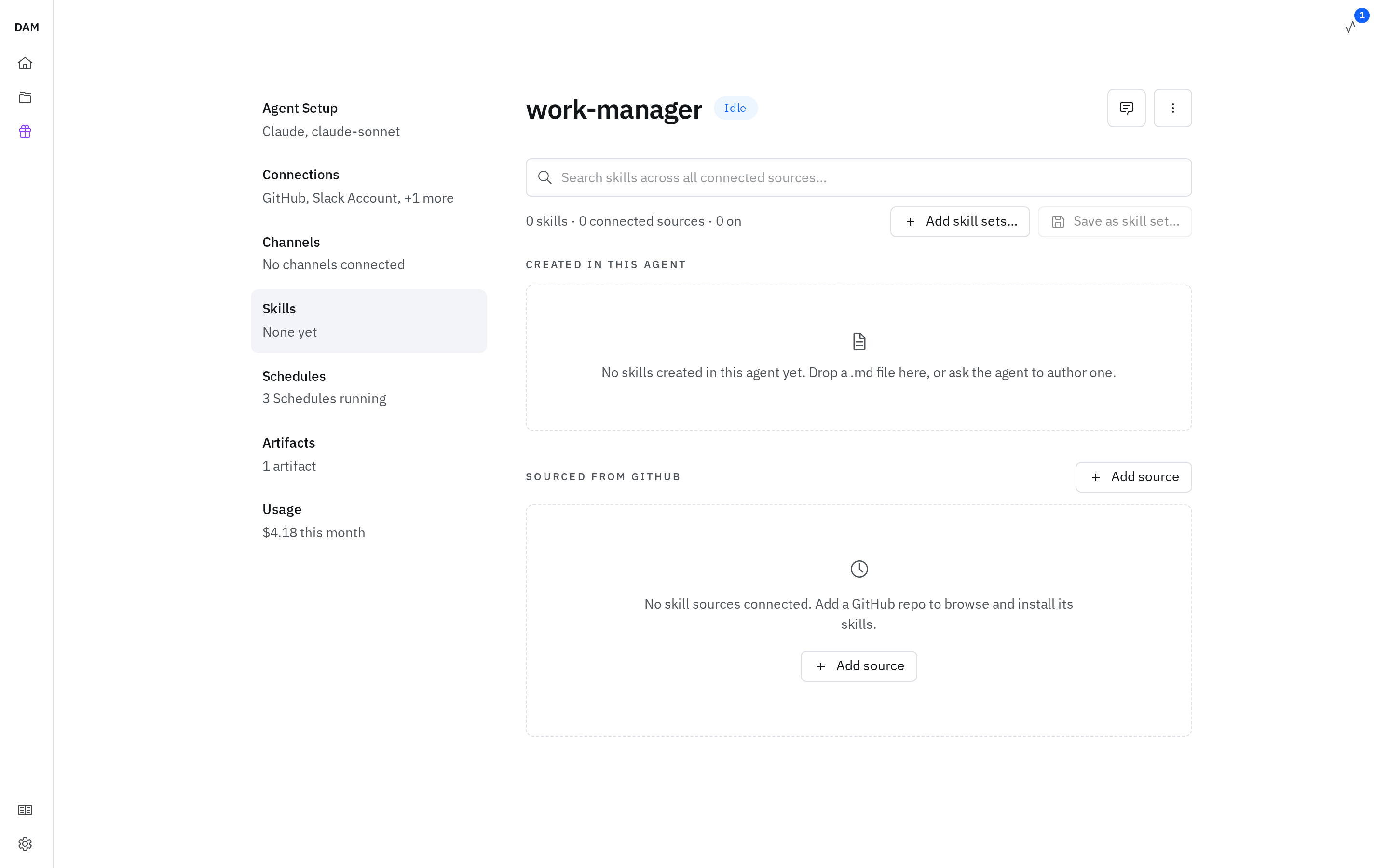
Every skill in the panel arrived one of three ways, and the panel groups them accordingly. Which group a skill is in decides what you can do with it, so this is the first thing to get straight:
| Group in the panel | Where it came from | Who manages it |
|---|---|---|
| Created in this agent | You authored it here — wrote the files in the workspace, or uploaded Markdown | Yours: edit, download, delete, publish |
| Included with sandbox image | Baked into the image your agent boots from | Read-only — comes and goes with the image |
| Sourced from GitHub | A git repo connected as a skill source; you install individual skills from it | Toggle each skill on or off; the repo is the source of truth |
The rest of this page takes them in that order.
Skills that came with the image are shown as two groups rather than one, because some of them are there to make a DAM feature work rather than to teach your agent a task — see From platform features. Both are read-only either way.
A search box at the top of the panel searches every connected source at once, and the line beneath it counts what you have — 12 skills · 3 connected sources · 5 on — or how many match while you're searching.
The panel is read-only unless the agent is running — a stopped, paused, restarting or unreachable agent all show the same read-only view, with a Start agent button. What you see then is Skills at next start: a count and the skill names as they stood the last time it ran, each row noting when it was recorded. Search, bulk actions, and the per-skill toggles are left out rather than greyed out. Sources stay editable throughout — only reading a private source's contents needs the agent up.
An agent that has never run has nothing recorded at all, and says so: skills are resolved when it starts, so the page fills in after the first start.
Click any skill's name to read its instructions — it opens in a dialog over the panel. For a skill you authored here or one that came with the image, the instructions live in the agent's own workspace, so the name is inert until the agent is up.
Created in this agent
Two ways to make your own:
- Write it in the workspace. A skill is a directory containing a
SKILL.md— YAML frontmatter withnameanddescription, then the instructions — plus any supporting files (templates, examples, scripts). Create it with the file manager or just ask your agent to. - Upload Markdown. The Add-source dialog has an Upload .md files tab that turns each file you
give it into its own skill. Dropping
.mdfiles straight onto the Skills panel opens that tab with them already staged. A file over 2 MB, or a batch over 5 MB in total, is skipped with a notice naming it; a name collision keeps the dialog open and marks the offending rows without writing anything.
Either way it lands under Created in this agent. Each one's ⋯ menu offers:
- Preview SKILL.md — read the instructions without leaving the panel.
- Download skill — a single-file skill comes down as one
.mdfile, ready to re-upload as-is; anything with extra files comes down as a.zipof the skill's folder. - Delete skill — removes it from this agent.
- Track from <source> — only once a skill you published has been merged; see Publishing one.
Publishing one
Publish opens a pull request against a connected GitHub source — it never commits directly. Only
sources on github.com can be published to — a repo on GitHub Enterprise installs fine but can't
take a pull request this way — so you need at least one github.com source connected before the
button does anything.
The skill then carries a pill naming the source, which links to the pull request. Its label tracks what the pull request has actually become, so you can read the state off the page:
| Pill | What it means |
|---|---|
| Draft | The pull request is still a draft |
| In review | Open and awaiting review |
| Published | Merged — the skill is upstream |
| Closed | Closed without merging |
| Submitted | You published, but the pull request's state isn't known yet |
Publish again comes back only in the Closed state, where nothing landed upstream. While a pull request is open or in draft there's already one to review, and once it's merged the next step is tracking rather than republishing.
Once a skill shows Published, its ⋯ menu offers Track from <source> — this hands the skill over to that source, so it becomes an installed skill that follows the source from then on and gets the usual update prompts when the source moves. It overwrites your local copy (you'll be asked to confirm, and warned if yours has diverged), and it's one-way.
The item can appear disabled, with a note saying the source hasn't been scanned yet — tracking needs to know which version upstream now holds. Re-scan the source and it becomes available.
Publishing shares a skill; it doesn't move it. Deleting a skill you published doesn't withdraw its pull request — follow the link if you want to close it yourself.
Included with sandbox image
Some images ship with skills already inside them, so a fresh agent is useful immediately. Which ones you get depends on the agent's image — an optimization framework image carries the skill that drives its framework, for instance.
These are read-only. You can't publish them, and editing one only earns it a Modified badge, meaning the files on disk now differ from the copy the image shipped. They aren't yours to delete either — they arrive with the image and change when you update the image.
An update moves each of these skills on to the version the new image ships, and drops any the new image no longer carries. One you've edited is the exception: once it reads Modified it's treated as yours, and an image update leaves it exactly as you left it.
This group only appears when there's something in it.
From platform features
Some of what an agent boots with isn't there to teach it a task at all — it's there so a DAM feature works. Those are collected under From platform features, with the description saying as much: the platform ships these so a feature works. They are managed for you — you cannot edit or delete them here.
Each row carries a badge naming the feature it belongs to — such as Schedules, Sub-agents, Model providers, GitHub accounts, or Object Storage — so it's clear why a skill you didn't ask for is present. Where the feature has a section of its own in the left nav, the badge is a shortcut to it: Schedules opens the agent's schedules, and Model providers, GitHub accounts and Object Storage open its connections. Sub-agents is a label only.
They behave like anything else that came with the image — read-only, no publishing, no delete — and the same Modified badge appears if the files on disk drift from what shipped. The practical point is that turning one off isn't a knob you have: the feature that relies on it brought it.
Sourced from GitHub
A skill source is a git repo full of skills. Connecting one doesn't install anything; it makes that repo's skills available to install individually.
- Open your agent's Skills panel
- Browse the skills in an existing source, or Add source with a git repo URL
- Flip a skill's toggle on — it installs right away; flip it off to uninstall
Click a skill's name to read its instructions before you turn it on — it renders right in the panel,
private repos included, with a link out to the file on GitHub. Previewing works for github.com
repos; a source on GitHub Enterprise or another host can't be previewed this way.
Installed skills are downloaded into your agent and become available on the next session — the harness picks them up when it next starts, not mid-session. Installing takes the version the source was last scanned at, not whatever its repo holds this second — so re-installing is how you update, and Re-scan is how you pick up a commit pushed in the last few minutes. When a source moves ahead of what you have, the skill shows an Update pill; click it to reinstall at the latest scanned version, or follow the compare link beside it to see what changed upstream first.
To remove one of these, turn it off in its source card — the Delete skill action is only for skills you created here.
A download that fails says so
Turning a skill on records your choice; fetching it into the agent happens just after. If that fetch can't be done — the repo has moved, the credential no longer reaches it — the agent carries a warning badge, in the agents list and beside its name in chat, and hovering it names what failed. So a skill that's toggled on but never turns up isn't a silent gap: check the agent for that badge.
Which sources you have
| Source | Can you remove it? |
|---|---|
| Set up by the platform team for everyone | No |
| Declared by your agent's template | No |
| A git repo you added yourself | Yes |
Coming back to the Skills panel shows you the lists it last held, rather than emptying while it reloads — a card that's checking upstream keeps its skills and shows a small spinner in place. A page reload starts over and re-reads every source.
Each source card's header shows how many of its skills are on and when the list was last scanned, with a re-scan button beside it. A source that has some on and some not opens collapsed to just the ones that are on; Show N more available reveals the rest. A source where everything is on — or nothing is — opens showing its full list with no collapse control.
Enable all / Disable all on a source card flips every skill in it at once. With a search active, the button narrows to the matches instead — Enable 4 matching.
The scan time hides while a source is broken
A source that can't be read shows its error in place of the scanned … label, so there's no freshness to read off a failing card. Fix the cause — usually a missing GitHub connection — then Re-scan.
Each source card's ⋯ menu holds Re-scan (re-read the repo now — the card shows when its list was last scanned), View repo, and, for a source you added, Remove source.
If you add your own source pointing at a repo the platform already provides, yours takes over the listing; remove yours and the platform entry reappears.
Reusing a selection across agents — skill sets
Once you've got an agent's skills the way you want them, Save as skill set… names that selection and keeps it for reuse. Add skill sets… on any other agent turns a saved set's skills on there.
- The set records skills by name and source, not by content — adding it elsewhere installs from the same sources, so the other agent needs those sources connected. A set lists how many of its skills aren't reachable before you apply it.
- Only skills from a connected source can go in a set. A skill you authored here or one shipped with the image has nowhere to install from, so it's left out.
- Adding a set is additive: its skills turn on alongside what's already there, overlap is fine, and nothing gets turned off. Pick several sets at once and you're told how many new skills that comes to.
- Saving starts from what's currently on, and you can unmark anything you don't want in the set.
- Sets are yours, not the agent's — delete one from the Add skill sets… dialog.
Where skills live in a source repo
When a repo is scanned as a source, each skill is a directory containing a SKILL.md. The scanner
looks under these roots, in order:
skills/.claude/skills/.agents/skills/
Skills found across these roots are combined. If none of them contain skills, the scanner falls back
to the repo's top-level directories. When the same skill name appears under more than one root, the
first match wins and the later duplicate is dropped.
If you point a source at a specific subdirectory when you add it, only that directory is scanned and the roots above are skipped — the dialog says as much under the field: Leave empty to search the usual locations. Changing the subdirectory means removing the source and adding it again.
A subdirectory that doesn't pay off fails by name rather than quietly listing nothing: the card tells you whether the path isn't a directory in the repo at all, or is one but holds no skill — naming the path, and the commit it looked at. Skills are found one level below the path you give, so pointing at an individual skill's own folder finds nothing.
Your agent can manage skills itself
Beyond the panel, the agent has built-in tools to discover and install skills mid-task — list sources, list a source's skills, install, uninstall, and publish a skill it authored as a pull request. These are always available; nothing to configure.