Connections
Connect your accounts so your agent can act on your behalf — without ever seeing your tokens.
Providers, Connections & API Keys
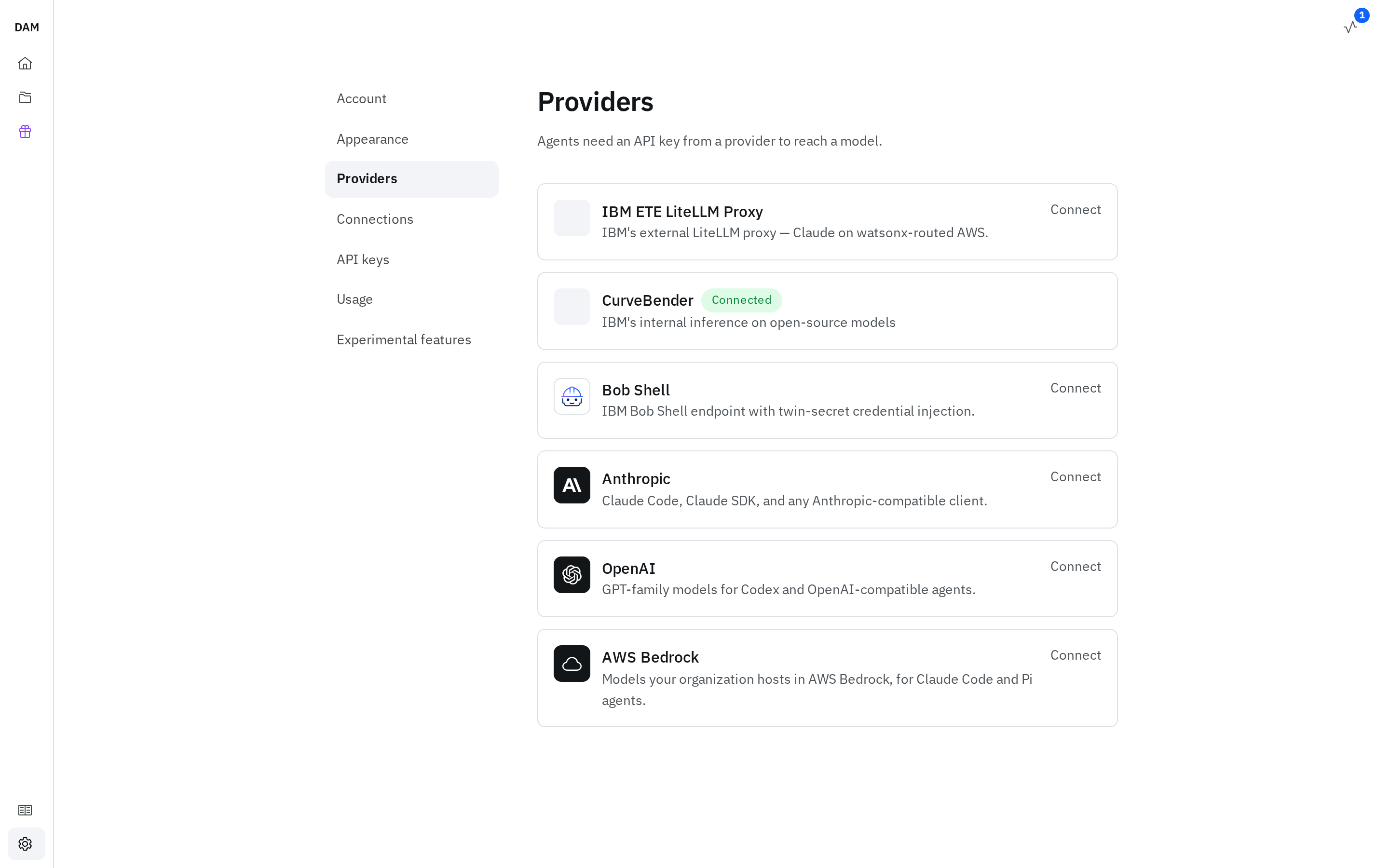
Three of the tabs in DAM Settings are easy to confuse. They do different things:
| Tab | What it's for | Example |
|---|---|---|
| Providers | The model that powers an agent. Every agent needs one. | IBM ETE LiteLLM Proxy and CurveBender on the IBM hosted deployment; Anthropic, OpenAI, AWS Bedrock, Bob Shell |
| Connections | Credentials and tools that let the agent act on external services on your behalf. | GitHub, a custom-header API, an MCP server |
| API keys | Tokens that let you or your automation drive the DAM platform itself via the API/CLI. | A scoped key for a CI pipeline |
(Settings also has Account, Appearance, and Usage tabs.)
The rest of this page covers Connections. Providers live on the Providers tab, where you can also update or remove a saved key; you pick one for an agent while creating it (see Create your LiteLLM key). AWS Bedrock is for Claude Code and Pi agents: it takes a Bedrock API key and the region its models are served from, and the model is optional. API keys are covered in the CLI reference.
How It Works
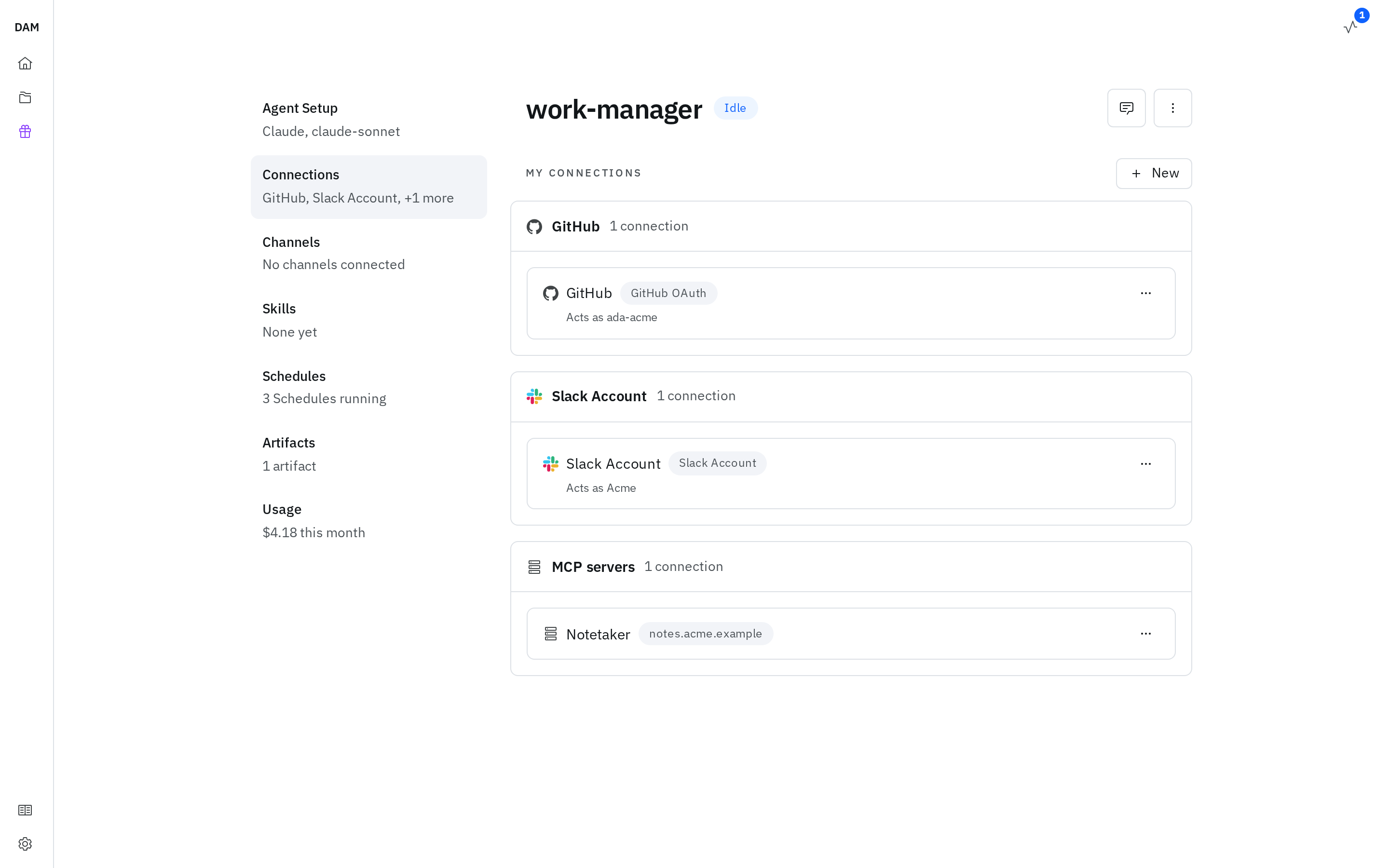
Connection credentials (OAuth tokens and API keys) are stored outside your agent and injected onto outbound requests by a paired gateway that sits between the agent and the internet. The agent never holds the raw token — even if compromised, it can't leak your keys.
Every credential your agent uses on the wire — provider API keys, GitHub tokens, custom headers — is a Connection. (Private-registry credentials are the one exception; you set those on the agent itself.)
OAuth Connections
OAuth connections refresh their own access tokens, so the tokens never need rotating by hand. A client secret you supplied yourself is the one part that stays yours to replace — see Managing Connections.
GitHub
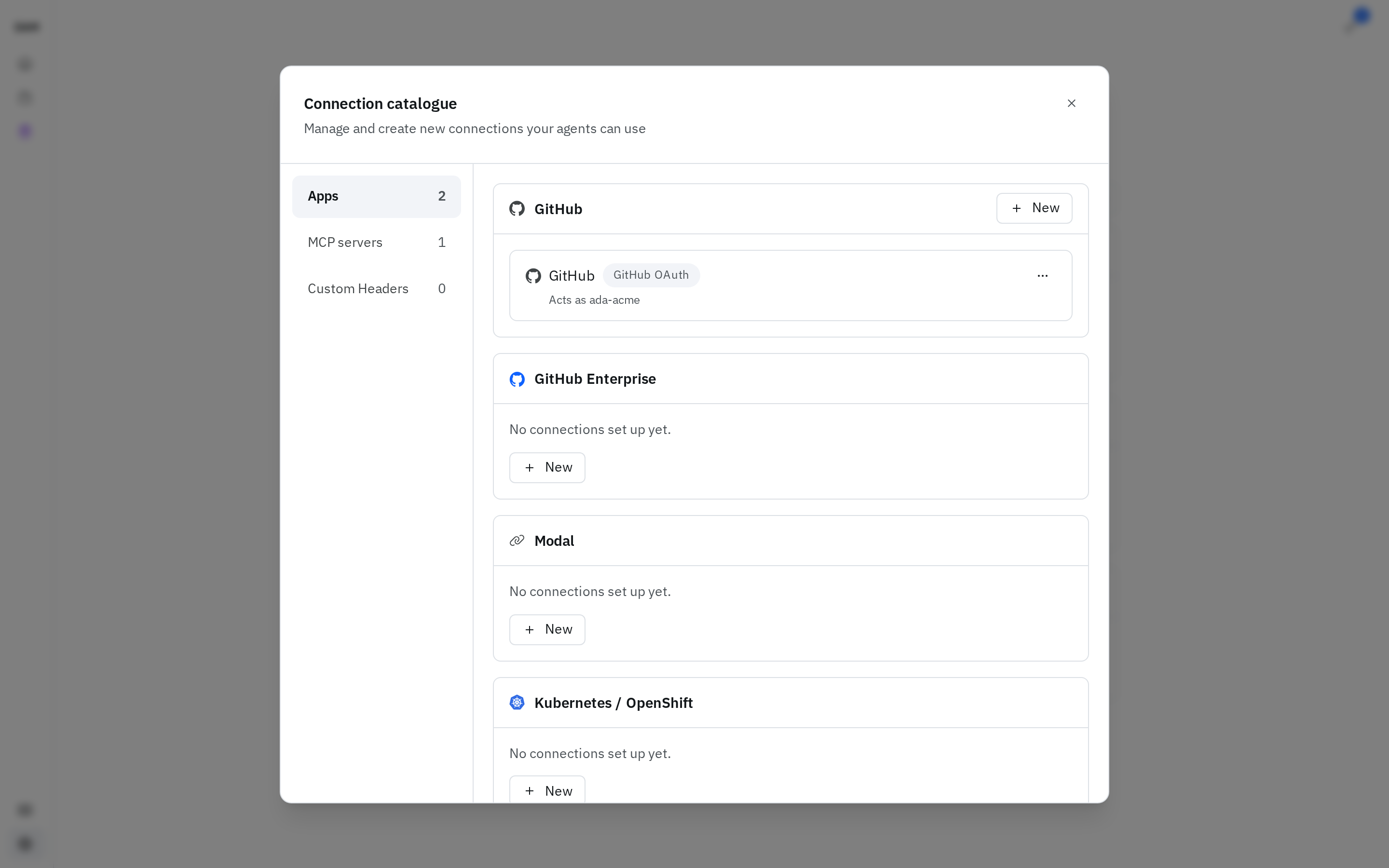
DAM integrates with GitHub.com and with any GitHub Enterprise host you supply, and there are three ways to connect either one:
- Go to Settings → Connections and click New to open the Connection catalogue
- On the Apps tab, click New on the GitHub card (or GitHub Enterprise). One pane — Connect GitHub — offers all three methods together; pick one and its fields appear below it
- Fill them in and submit: Continue to GitHub hands off to GitHub's own sign-in, while Create token and Connect app save without leaving DAM
| Method | What you supply | Reach for it when |
|---|---|---|
| Authorize with GitHub | Nothing — unless your operator hasn't registered an OAuth app for everyone, in which case a client id and secret of your own | You want the quickest route, and the agent acting as you |
| Connect with a personal access token | A fine-grained token you create on GitHub | You want to scope access to just the repos you choose — the simplest route to private repos |
| Connect your GitHub App | An app id, installation id, and the app's private key | You'd rather agents act as a bot your organization owns |
A GitHub Enterprise connection asks for the hostname as well, whichever method you pick.
Authorizing is only half of the OAuth route
Signing in confirms who you are — on its own it doesn't grant access to your repositories, which is why the form tells you 2 steps required for successful connection. The second step is installing the DAM app on the organization that owns the repos you want, choosing which of its repositories DAM may read and write. An active connection that still needs it carries a button on its row to go and install (the label uses whatever name your operator has given the platform). That's done once per organization, and if you don't own the org an owner has to approve or complete it.
No install button?
It takes three things. The connection has to be active — one still waiting on authorization offers Authorize in its ⋯ menu instead. Your operator has to have registered DAM as a GitHub App rather than a plain OAuth app. And it has to be that app you authorized through: supply an OAuth client id of your own and there's nothing for DAM to offer, because it doesn't know your app. Where there's no install to do, use a personal access token or your own GitHub App for private repos instead.
Once that's in place, your agent can clone private repos, push branches, create PRs, and use the gh CLI with no login of its own.
Connecting your own GitHub App
Pick Connect your GitHub App when you'd rather agents act as a bot your organization owns than as you. Create the app on GitHub under Settings → Developer settings → GitHub Apps, grant it the repository permissions your agents need, and install it on your organization. DAM only ever mints tokens from the app's private key, so leave the app's Callback URL empty and leave its webhook inactive.
Then give DAM the app's App ID, Installation ID, and Private key (PEM) — the whole file including the BEGIN/END lines, or its base64 encoding. The key is verified by minting an installation token before anything is stored, so a wrong one is refused rather than saved.
By default the connection can do everything that installation can. To narrow it, Read installation lists what the installation actually holds: tick the repositories this connection should reach (tick nothing and it reaches all of them), and set a level per permission (leave them all off and it keeps every permission the app was granted). A permission can't be set higher than the installation holds it, so this only ever narrows. Where the installation has more repositories than can be listed, you name them instead.
Afterwards, Edit repositories & permissions in the connection's ⋯ menu revisits that scope, and Update private key rotates the key.
When you sign in with GitHub.com, commits the agent makes are attributed to that account — DAM writes your GitHub display name and email into the agent's git config (user.name / user.email). If your GitHub profile email is private, a users.noreply.github.com address is used instead, so your primary email never lands in commit history. Other GitHub connection types, including GitHub Enterprise, don't set this — configure git yourself there.
That write is a convenience, not a guarantee: if GitHub doesn't answer when the connection is made, the
connection still succeeds and the git config is simply left alone. If commits come out attributed to the
agent's default identity rather than yours, set user.name and user.email in the agent yourself.
Two GitHub accounts on one agent
An agent can hold more than one GitHub connection to the same host — say your own sign-in and a bot's
GitHub App. With two or more, gh is set up with every one of them as a separate account, and the agent
can move between them with gh auth switch. It acts as the one added to it first unless you pick another:
the agent's own Connections panel shows which account it acts as on that host, with an
Act as <name> by default button for each of the others.
Only the default account's identity goes into the agent's git config, so with two GitHub.com sign-ins, commits are attributed to whichever one the agent acts as by default.
API Key Connections
For services that use a static API key rather than OAuth, connect a prebuilt template:
- Go to Settings → Connections → New to open the Connection catalogue, then on the Apps tab pick the service (e.g. Modal)
- Fill in the fields the service asks for — the key, plus anything else on the form (Modal also wants its Token ID) — and click Create
Model providers aren't here — they live on the Providers tab (see above).
Slack
A Slack card in the catalogue's Apps tab connects your own Slack account, so the agent can search, read, post, and react in Slack as you. It's backed by Slack's own MCP server, so it arrives as a set of tools the agent calls.
This is not how you connect a channel
Connecting Slack here lets an agent act in Slack under your account. Letting a Slack channel talk to an agent is a different thing entirely — that's a binding, and it's covered in Slack. You can have either without the other.
Because it reads as you, this is the way to have an agent follow channels for context — any channel you can see, with no binding and without inviting the DAM bot. Point one agent at as many channels as you like: the connection is granted per agent, so more channels needs no more setup, and a second agent is for separate knowledge or separate credentials rather than for separate channels.
There's no read-only mode — 'never post' is an instruction
The connection carries posting ability (writing messages, reactions, and canvases) whatever you intend to use it for, and the create form has no scopes field to trim. So an agent that only watches is one you've told to only watch, in its instructions — not one DAM restricts. If you need that enforced rather than asked for, narrow the user-token scopes on your own Slack app.
Unless your operator registered a Slack app for everyone, you supply an OAuth client id and secret from your own app. Enable the user-token scopes the tools need before authorizing: a scope you miss shows up later as a Slack call that fails, not as an error when you connect.
The workspace has to have the app installed
You're signing in through a Slack app — the shared DAM one where your operator registered it, otherwise your own — so the workspace you sign in to has to have that app installed. On the shared app that's the same install a channel binding needs, and not every workspace has it: see Is DAM in your Slack workspace?.
Kubernetes / OpenShift
Connect a cluster with its API server URL and a service-account token (plus the Cluster CA
certificate, if its endpoint isn't publicly trusted). Your agent gets a working kubectl —
the token itself never reaches the agent, so it can't leak from there. Connect several clusters and
they compose.
Object Storage
An Object Storage card on the Apps tab connects any S3-compatible bucket store with an HMAC key
pair: give it the Endpoint URL (an https:// address, host only), the Access key ID and
Secret access key, and optionally a Signing region and a Bucket to confine it to one bucket.
DAM checks the keys against the endpoint before saving, and Update keys in the connection's ⋯
menu later replaces both at once. The agent never holds them: the gateway signs the agent's requests to
that endpoint on the way out, and the agent gets an AWS profile already pointed at it. With two or more
Object Storage connections, the agent's Connections panel shows which one it uses by default, with a
Use <name> by default button for each of the others, and the agent can name another with
--profile.
Use read-only keys for read-only access
The agent can do anything the keys allow. To keep an agent to reading, give it keys that can only read.
For a service without a prebuilt template, use the Custom Headers tab → New to inject any header (e.g. Authorization: Bearer …) on requests to a host you specify. See Calling an External Service.
MCP Servers
Connect an external MCP server to give your agent additional tools beyond the built-in ones. Once a server is connected and granted to an agent, its tools are exposed to the agent automatically — no per-session setup.
Under Connections → MCP servers, click New, then give the server a name and its URL (e.g.
https://mcp.acme.internal/sse). DAM checks the URL and works out whether it needs OAuth — if it
does, the button becomes Create + Authorize and walks you through the server's sign-in. An
Advanced configuration section lets you pin your own OAuth client or a header credential instead.
For an MCP server that runs on your own machine rather than at a public URL, run it as a satellite instead: it connects out to DAM and then appears on this same tab.
Built-in vs. connected tools
Every agent already has built-in tools for managing its own skills, channels, and schedules — those need no setup and are noted on each feature's page. MCP server connections are how you add more tools on top of those.
Managing Connections
- View — Settings → Connections lists everything you've connected, grouped by service. Each agent has its own Connections panel listing just what's been granted to it. Slack and GitHub.com connections also say whose account they act as — Acts as the person and workspace for Slack, the login for GitHub — once DAM has looked that up.
- Remove from one agent — in the agent's own Connections panel, a connection's ⋯ menu → Remove from this agent revokes it there and leaves it available elsewhere. That item is about the grant, so it only appears where there is one — you won't find it under Settings.
- Delete everywhere — ⋯ → Delete this connection removes it for every agent. DAM confirms first and lists the agents that will lose it.
- Per-user — your connections are yours alone, never shared with teammates.
- Granted per agent — a connection you own reaches an agent only once you grant it there. Connect once under Settings, then grant it to each agent that should use it.
- Two accounts of one service — an agent can hold two connections to the same service as long as DAM can tell their requests apart, as it can for two GitHub accounts. Where it can't, the second one reads Can't add in the catalogue you open from that agent, and hovering it names the connection already signing in to that host: remove that one from the agent first. A connection you create from there that clashes this way is created but not added, and an agent that already holds such a pair warns about it in its Connections panel.
- Rotating a key — when an API-key or custom-header connection's value rotates upstream, update it in place rather than disconnecting and reconnecting: the connection's ⋯ menu → Update credential, or
dam connection update. The connection keeps its name and all its agent grants, and nothing restarts. - Rotating an OAuth client secret — an OAuth connection you created with your own client id and secret also offers a rotation item, labelled Update client secret, for when that secret changes at the provider. DAM tries to revive the connection with it immediately. A connection that authorized through the client secret your operator configured for everyone has no such item: there is no per-connection secret to replace, and rotating it is the operator's job.
- Re-authenticating — an OAuth connection whose credential stopped working shows Expired, with a
one-click Re-authenticate button on the row. It re-runs login and consent and replaces only the
tokens: the connection keeps its name and every agent grant.
dam connection reauthdoes the same from the CLI. A connection still waiting on its first authorization reads Authorizing… instead of Expired, and offers Authorize in its ⋯ menu rather than a button on the row. - Which repair you get — Re-authenticate is the OAuth repair; there is no login to re-run for a key, so an API-key or custom-header connection offers Update credential instead. In practice a plain API-key connection doesn't go stale on its own: DAM has no expiry to read for one, so it stays active and you replace its value when the service rejects it.
Security
Tokens live in a separate gateway your agent cannot reach. Network policy enforces this boundary at the cluster level. See Architecture for the full model.