Network Access & Approvals
Agents can only reach external services you explicitly allow. Everything else is blocked or requires your approval.
Egress Rules
Each agent has an allowlist of external services it can reach.
| Field | Description | Example |
|---|---|---|
| Host | Domain the agent can reach. A leading *. covers one level of subdomain; * on its own covers everything. Add :port for a service that isn't on 443 |
api.github.com, *.pkg.dev, api.prod.example:6443 |
| Method | HTTP method (defaults to *, meaning all) |
GET, POST |
| Path | URL path pattern (defaults to *) |
/repos/* |
| Verdict | allow or deny. The most specific rule wins, so a deny rule can carve an exception out of a broad allow |
allow |
A rule covers one port
A rule with a port covers only that port. A rule without one covers only the standard port — 443
for HTTPS, 80 for plain HTTP — so allowing a host never opens its other services: to reach
api.prod.example:6443, the rule has to name :6443. An approval for a request on another port
writes a rule carrying that port. A port also makes the rule a narrowed one, which is what
triggers the gateway restart described below.
A wildcard stands for exactly one label
*.pkg.dev covers us-docker.pkg.dev, and not a.b.pkg.dev — the same rule a wildcard TLS
certificate follows, and the same one the gateway enforces on the wire. A deeper subdomain needs its
own rule, or its own *. wildcard.
Specificity is ranked, and method outranks path. An exact host beats a *. wildcard, which beats
*; then an exact method beats *; then an exact path beats *; and among path patterns the longest
wins. So an allow on (host, GET, *) beats a deny on (host, *, /v1/admin) — worth knowing before you
rely on a deny rule to carve out a path.
Narrowing a rule usually restarts the gateway
A host-only rule is cheap. Adding a method, path, or port means the agent's network gateway has to inspect that host's traffic more closely, which restarts the gateway (~5–15 seconds) for that agent only. The agent keeps running throughout — its outbound requests are briefly interrupted. DAM asks you to confirm before saving such a rule, and tells you when no restart is needed.
Three cases don't restart it: a second narrowed rule on a host already being inspected, a
rule that came from a connection however narrow it is, and a narrowing on the catch-all *
host. Removing the last narrowed rule for a host reverses the promotion — which also restarts it.
How Rules Are Created
- From connections — granting GitHub to an agent allows
api.github.com,github.com, andraw.githubusercontent.comthere. Granting GitHub Enterprise allows the host you specify plus itsapi.<host>. Creating the connection under Settings writes no rules on its own; they arrive with the grant, and are withdrawn when you remove it. - From approvals — choosing Allow permanently on an approval creates a rule
- Manually — add rules directly under Network access in the agent's Agent Setup section
- From a starter kit — a starter kit can pick the agent's preset, including one that allows everything, and add rules of its own. Creating from the kit shows both in a read-only Network access section before you create the agent, so check it there. Afterwards they're yours: in the rule list they read from the starter kit, and you can revoke them or switch the preset like on any agent
Presets
Rather than writing rules one at a time, pick a preset:
| Preset | What it does |
|---|---|
| Trusted defaults | Allows GitHub, npm, PyPI, Anthropic and other common hosts. The usual starting point. |
| Strict default-deny | Adds nothing — every request needs your approval before it goes through. |
| Allow everything | A development escape hatch. Narrow it back with deny rules. |
Switching presets replaces the previous preset's rules. Rules you added by hand, and rules that came from a connection or a starter kit, are left alone.
Approvals
When an agent tries to reach a service not in its allowlist:
- The request is held (paused, not rejected)
- The approval appears in Activity — see Where approvals appear
- You choose a verdict:
| Verdict | Effect |
|---|---|
| Allow once | This request proceeds; future requests prompt again |
| Allow permanently | Creates a lasting egress rule for that host/method/path |
| Allow all of <host> | Creates a host-level rule (all methods/paths on that host). Offered on network prompts only — tool-call prompts have no host |
| Deny this request | Blocks just this request; future requests prompt again |
| Deny permanently | Creates a lasting deny rule; this and every future matching request fail |
Allow-once is the card's own button, labelled just Allow; the other four are under the ⋮ beside it, along with Network settings to go and edit the agent's rules directly instead.
Where a verdict would change what the gateway inspects, a Restart network gateway? confirmation appears first, naming the hosts affected and confirming with Allow & restart or Deny & restart. If nothing would restart, no confirmation appears — see Egress Rules. Allow all of <host> writes a host-wide rule, so it never restarts the gateway.
If an equivalent rule already exists with the opposite verdict, the verdict is refused rather than resolved, and you're pointed at the agent's network rules to change it there.
From the CLI, the bare verb is durable
dam approval approve <id> writes a permanent allow rule for a network request — the
equivalent of Allow permanently. Pass --once for Allow once, or --entire-host for
Allow all of <host> (network requests only, and not combinable with --once).
dam approval deny <id> is durable the same way — Deny permanently — with --once for
Deny this request. Tool-call approvals never write an egress rule. See the
CLI reference.
Timeout
If no one responds within 30 minutes (your operator can change this), the request is automatically denied. The agent can retry or take an alternative approach.
A turn driven from Slack or Telegram isn't held
Nobody in a channel conversation can answer an approval — the members aren't the agent's owner, and the owner may not be around. So when the request comes from a channel turn and no chat, terminal, or SSH session is attached, it's refused straight away instead of waiting out the window. The agent is told to name the host and point at you rather than retry into the same wall.
The request is still recorded, so it appears in Activity as usual and allowing it there permanently writes the rule the agent picks up on its next attempt. If you do have a session open on that agent, a channel turn holds and resolves normally.
If a prompt timed out
A prompt that timed out leaves Activity, because the request has already failed. To let the
agent through next time, Add rule under the agent's Network access, or find the prompt
with dam approval list --status expired and run a bare dam approval approve <id>. That still
writes the rule, and the agent succeeds on its next attempt.
When things fail
The default is always deny:
- A host you've explicitly denied fails right away. A host with no rule at all normally doesn't fail — it waits for you (see Approvals). The exception is a channel turn with nobody attached, which is refused immediately rather than held.
- If the approval system itself is unreachable, the request is refused without raising a prompt.
- An expired hold is denied, not allowed.
Some hosts never prompt
A small set of platform-provided upstreams — the object store behind the artifact library, for instance — is allowed ahead of your rules, so those requests never raise an approval and never appear in Activity. You don't need a rule for them, and you can't deny them with one. The same goes for the hosts your agent's model-provider connection needs: they're let through even over a deny rule, so a rule can't cut an agent off from its own model. Everything else your agent reaches goes through the rules and approvals above.
Where approvals appear
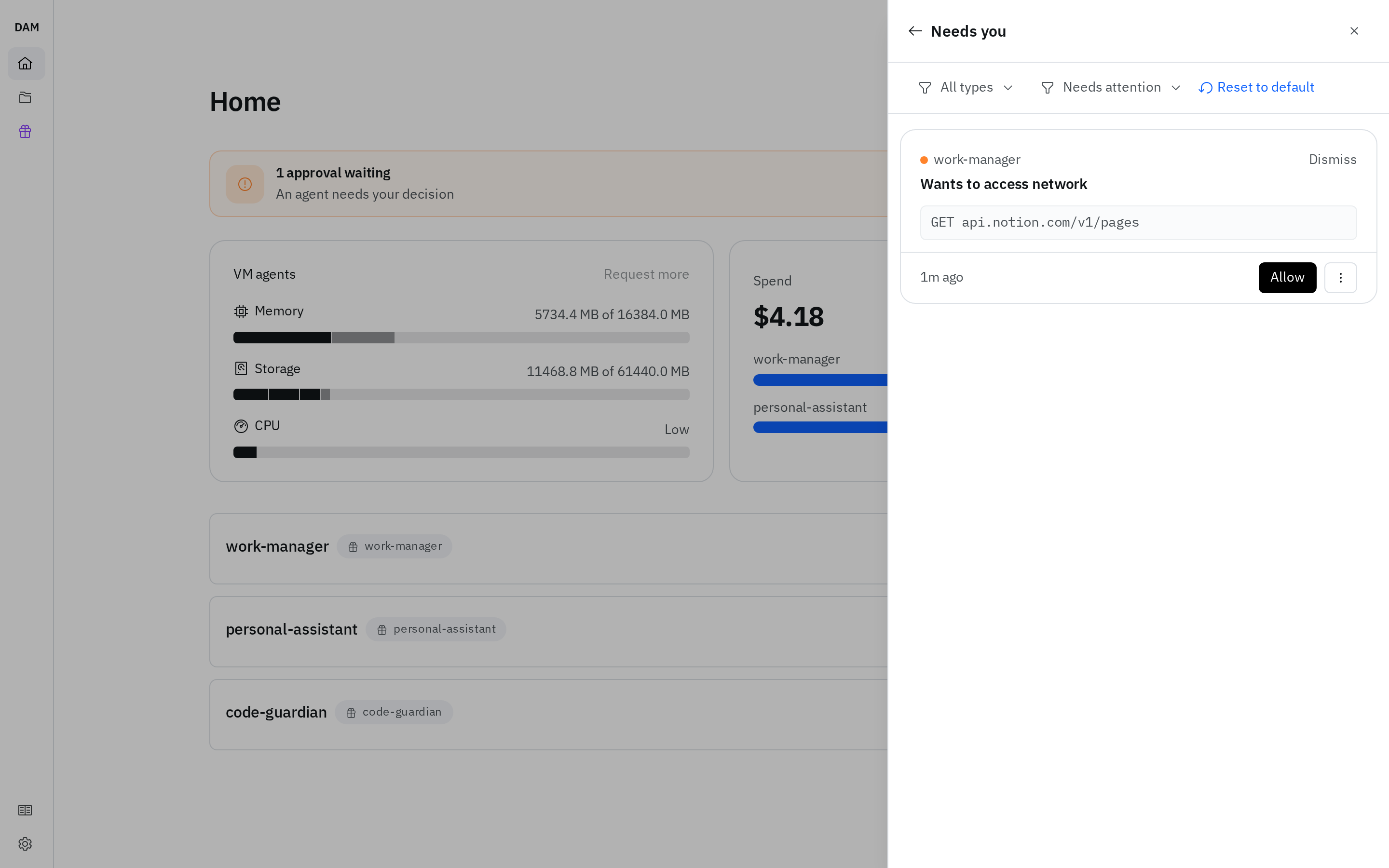
Approvals live in Activity, the panel the Activity button at the top right of every page opens. The button shows a count while approvals are waiting, so check it when an agent seems stuck — it may be waiting for you. You're pointed there two other ways too. A new approval pops up briefly naming the agent, and clicking it opens Activity straight on the approvals. And while any are waiting, Home shows a banner counting them, which opens Activity.
- Approvals aren't mixed into Activity's list of session activity from chats, channels, and schedules. An approvals waiting summary at the top of that list opens them, as does the Needs attention filter; the view's back arrow returns you to the full list.
- Two filters narrow the list: one by status — All, Needs attention, In progress, Unread — and one by where the activity came from — Chat, Slack, Telegram, Schedule, Terminal.
Note
An approval you've just answered stays on screen showing what you chose, rather than vanishing as you click.
Session cards stay until you dismiss them, rather than disappearing the moment you've looked at the session — so Activity is a list you clear, not one that clears itself behind you. Cards for finished work age out after a week either way. Where a session produced artifacts, the card carries them as chips that open the preview directly, up to three with +N more for the rest.
Activity is remembered for you, not for the browser you cleared it in: dismiss a card on your laptop and it stays dismissed on your phone. It also answers for an agent that's hibernated — an agent doesn't have to be up for its activity to be listed.