Artifacts
An artifact is a finished output your agent publishes to keep — a report, a dashboard, a generated page, a data file. Unlike a file in the agent workspace, an artifact outlives the agent that made it: delete the agent and the artifact stays in your library.
Artifacts are yours, not the agent's. The library is owner-scoped — you see your own.
What an artifact can be
| Kind | Renders as |
|---|---|
html |
A live page |
jsx |
A live React component |
markdown |
Formatted prose |
code |
Syntax-highlighted source |
text |
Plain text |
binary |
Anything else — downloadable (images, PDFs, archives, datasets) |
The kind is detected from the file name and content when the agent doesn't set it. HTML and JSX artifacts render and run, which is what makes a dashboard or an interactive report work — those aren't separate kinds, just things you author as HTML, JSX, or markdown.
Self-contained only
A rendered artifact is a single file. Anything that exists only inside the agent — a companion file, an installed package, a running server — won't exist for a viewer. Resources must be inlined or referenced by absolute public URL.
A JSX artifact must export its React component as the default export, and it pulls React and charting libraries from public CDNs in the viewer's browser — so it needs the viewer to be online.
Non-binary artifacts — text, code, markdown, HTML and JSX — over 10 MB aren't rendered; they're offered as a download instead. Of the binary kinds, only images preview inline, and a shared image streams at any size. Publishing itself is capped at 50 MB per artifact by default; your operator can set a different ceiling.
Publishing one
Ask the agent for the output you want and to publish it. It has built-in tools for the whole lifecycle — creating, updating, organizing into folders, and setting sharing — so nothing needs configuring first. Text content up to 2 MB is sent inline; anything larger or binary is uploaded directly, so big files never pass through the conversation.
Agents can read the library back too — any artifact, at its current or a past version — so a report one agent published can be picked up by another without passing through the conversation.

When an agent publishes something, it links it in chat — opening that link previews the artifact beside the conversation, so you can read a report or click through a dashboard without leaving the session. Where the artifact renders as a page, Open fullscreen in that panel gives it the whole window for a dashboard too dense to read in a column; the panel says it's Opened in fullscreen until you come back. Source switches to the underlying text instead.
You can also upload a file yourself with Upload artifact, or publish a file straight out of an agent's workspace — see the File Manager.
Everything collects in the Artifacts destination, searchable by title and file name. Each agent also shows the artifacts it produced.
An agent can only publish into its own owner's library, and attribution can't be spoofed.
Editing one yourself
You don't have to ask the agent to fix a typo. Edit — in an artifact's ⋯ menu, and in the artifact once it's open — edits the text in place and saves it as a new version, exactly as an agent's own update would: same share link, same version history.
Three things make an artifact editable, and the menu simply leaves Edit out otherwise:
- It's text — anything but a binary file.
- It's the current version. Pin an older one to read it and editing is off; come back to the latest to change it.
- It's small enough to send back inline. A large artifact you can still read is offered as too large to edit here.
If someone else — or the agent — published a new version while you were typing, your save stops and tells you rather than quietly burying theirs: this artifact has a newer version — overwrite it with your changes? Say yes and yours becomes the latest; say no and nothing is saved, so you can reopen the newer one and redo your edit on top. An unsaved edit is guarded too: navigating away asks before discarding it.
Versions
Updating an artifact's content publishes a new version rather than overwriting it. The artifact keeps its identity: the share link stays the same, and it always shows the current version. Someone with the link can't page back through older ones — a link that names an older version opens on the current one. The history stays with you in the app, where the version list shows each one's age, its size, and who published it — You, or the agent's name.
Editing only metadata — title, file name, folder — changes it in place without a new version.
An artifact's kind is settled when it's created. Renaming the file or publishing different content never changes it, because the share link outlives every version — publish a new artifact when the content is a different kind of file.
Folders
Group artifacts into folders to keep a library browsable. Create one with New folder in the Artifacts page header, beside Upload artifact. Folders are a single flat level — no nesting. Deleting a folder does not delete the artifacts inside it; they become ungrouped.
File something into one with Move to folder… in its ⋯ menu, or drag the row onto the folder. Rename in the same menu changes the title.
Your folders show up wherever an agent's artifacts are listed, not just on the library page: the Artifacts panel beside a chat, and the Artifacts section on the agent's own page, both group into the same collapsible folders with a count on each. Two things about those two places are worth knowing, because they're what makes a folder look wrong when it isn't:
- The count is that agent's artifacts, not the folder's whole contents — the same folder shows different numbers beside two different agents, and anything you filed there from elsewhere isn't counted.
- Every folder you've made is listed even when that agent has put nothing in it, so there's always somewhere to drop a row — an empty one just starts collapsed. You can drag an artifact into a folder straight from the chat panel without opening the library.
The three sections beside a chat — Sessions, Files and Artifacts — all start open, and each remembers whether you collapsed it, so the sidebar comes back the way you had it. Where two of them are open, the divider between them can be dragged to change how they share the height, and that's remembered too. A panel won't shrink past a readable minimum, and a collapsed panel has no divider.
Picking work back up from one
An artifact is usually the end of a piece of work, but it's a reasonable place to start the next one. Start a new session — in the row's ⋯ menu, and in the preview dialog and docked panel while you're looking at the current version — opens a fresh chat with the agent that published it, with a reference to the artifact already in the message box.
Nothing runs until you send: you read the line, add what you want done, and send it yourself. An artifact you uploaded has no publishing agent, so it doesn't offer the action at all.
An empty library has no header buttons
New folder and Upload artifact appear once there's something in the library. Until then the page is an empty state pointing you at your agents — so the first artifact comes from an agent publishing one.
Sharing
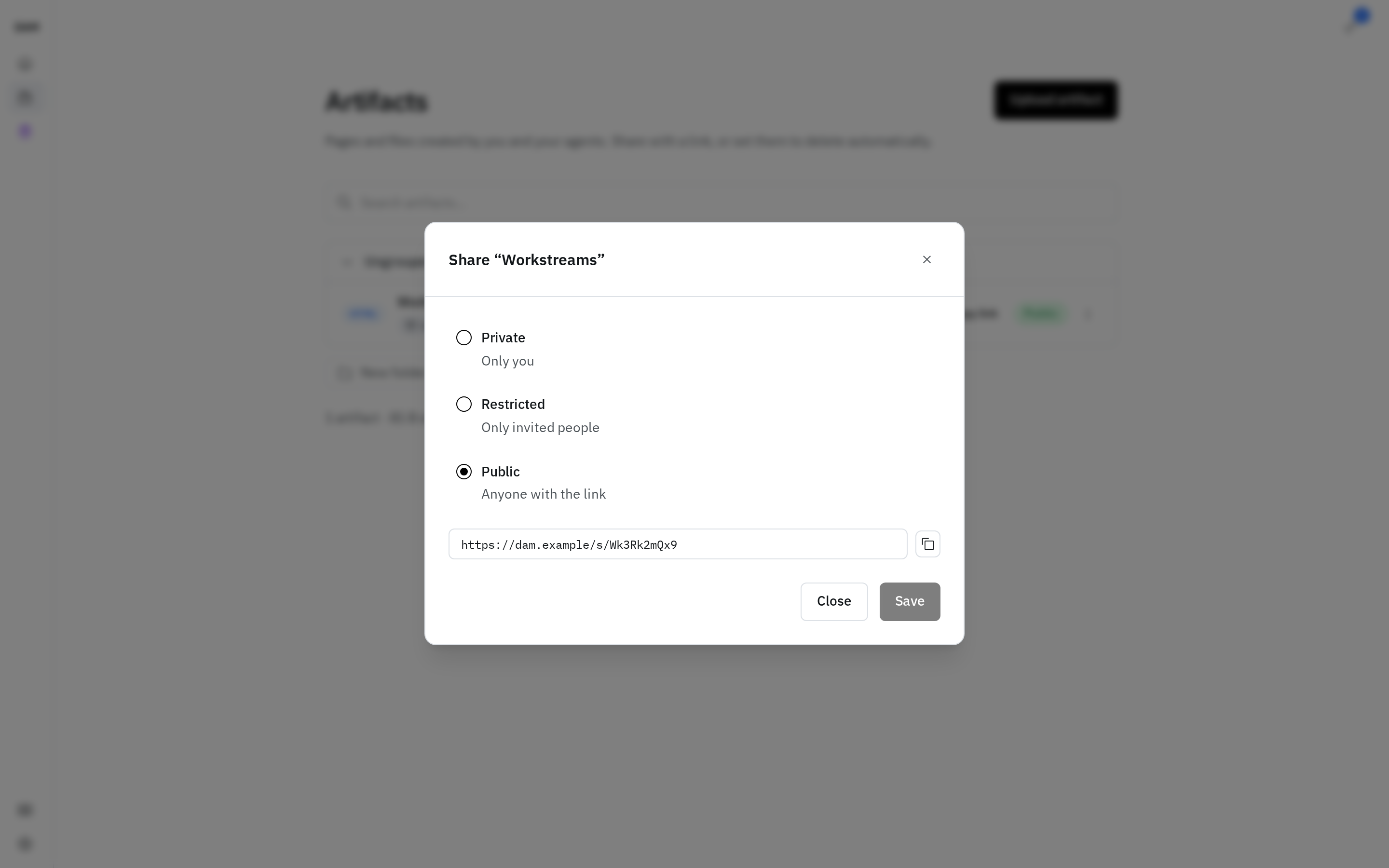
Artifacts start private. Every row wears a badge saying which it is — Private, Restricted or Public — and the badge is the control: click it to open the sharing dialog. Share in the artifact's ⋯ menu and a Share button in the opened artifact get you to the same place. The link is served from a separate share domain, so a shared artifact can never reach your DAM session. Once an artifact is public, a copy-link control sits beside the badge.
The dialog offers three choices for who can open it:
| Choice | Who can open it |
|---|---|
| Private | Only you — no link |
| Restricted | Only invited people, who sign in first |
| Public | Anyone with the link |
Restricted shares with people you name. Add each one's email address, and a visitor has to sign in before the artifact renders; anyone whose signed-in email isn't on the list gets a plain no-access page offering to switch account. Add nobody and the link opens for you alone. The list holds email addresses rather than DAM accounts, so you can invite someone who has never signed in — but they do need an account your organization's identity provider admits, since an email on the list doesn't create one.
Only you can make an artifact restricted, in this dialog. An agent's own sharing tools offer private and public, and refuse any sharing change to an artifact that's already restricted — so an agent can neither widen a restricted link nor edit who's on it.
A public link is the access control
A public share URL contains an unguessable random token, and that token is the only thing protecting it. Anyone who has the link can view the artifact — no sign-in and no password option. Treat a public link as public: guarding it is up to you.
Sending it to an external service publishes it. It may be cached or indexed even if you later make the artifact private. Choose Restricted instead where you need to know who's reading.
Turning visibility back to private disables the link immediately.
Folders get a public page automatically once something inside them is shared — it lists only the artifacts that are themselves shared. Copy folder link in the folder's ⋯ menu gives you the URL, and stays disabled until at least one artifact inside is public.
Each artifact records who published it (which agent, or you if you uploaded it) and a view count of public renders. The count is a bare number — no viewer identity or timestamps — and in-app previews don't add to it.
Shared HTML and JSX is live code
Rendered artifacts execute as authored — the platform doesn't sanitize HTML or JSX. That's what makes interactive dashboards work, and it's why you should only share content you trust.
Expiry deletes the artifact
An expiry is retention, not link lifetime. This is the one thing worth reading twice:
An expired artifact is permanently deleted
Expiry applies to the artifact itself, regardless of visibility — a private artifact with an expiry is deleted too, and making a public artifact private again does not cancel its expiry. It is not just the share link switching off.
Once the expiry passes, the link reports itself as expired and you can still renew it. After a 7-day grace period the content is permanently deleted, every version with it.
Because it's retention rather than sharing, it lives apart from the share link: Delete after… in an artifact's ⋯ menu offers Never delete, Delete in 1 hour, 1 day, 7 days, or 30 days — plus Keep current date once one is set. It applies to a private artifact just as much as a public one, so you can schedule a cleanup without ever sharing the thing.
Deleting an artifact is also permanent — all versions go, and the share link dies with them.