Schedules
Run your agent on a recurring basis without manual intervention.
Overview
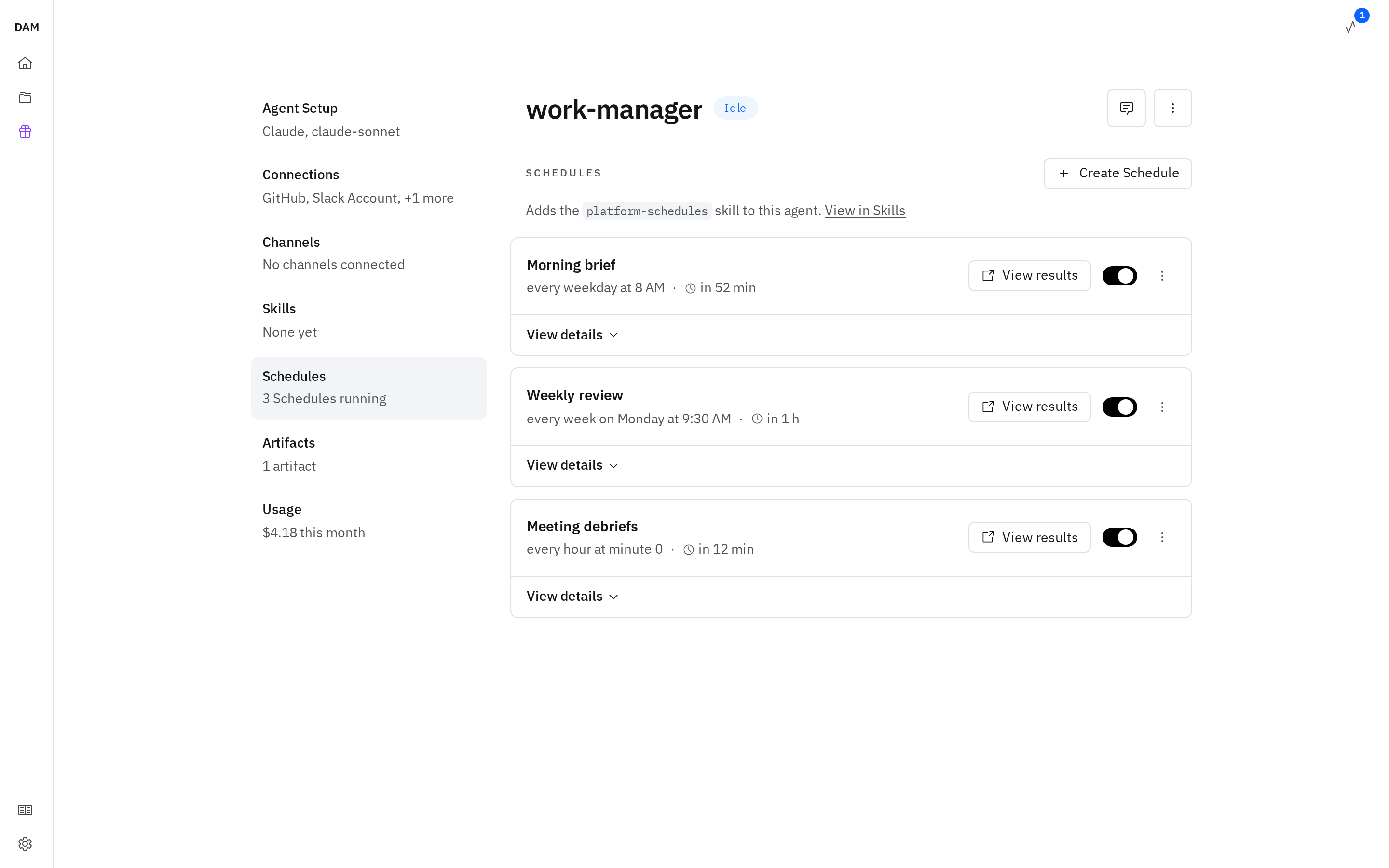
Schedules let you define automated tasks that fire on a timer:
- Daily PR reviews at 9am
- Weekly email triage every Monday morning
- Hourly data sync checks
Creating a Schedule
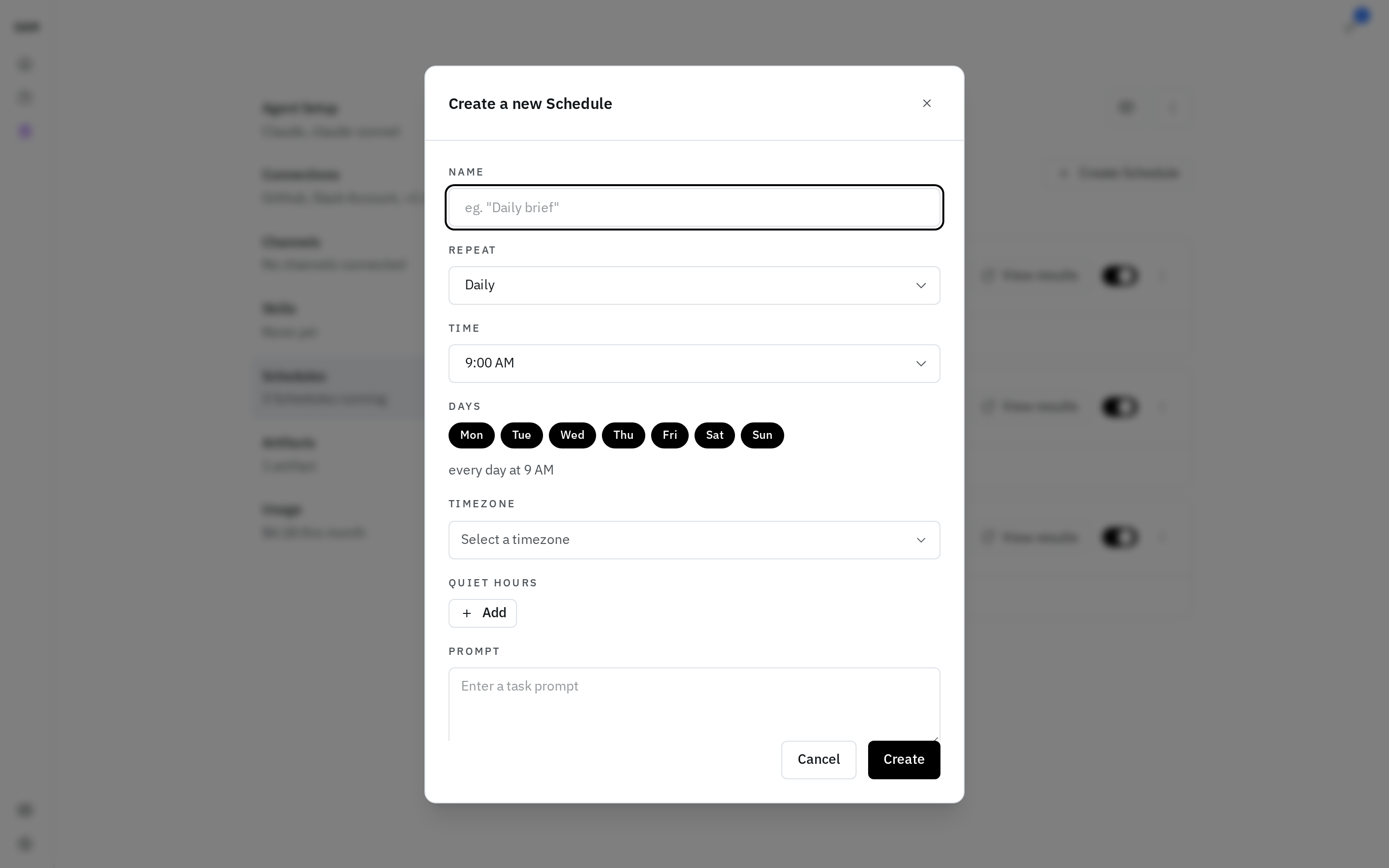
- Open your agent's Schedules panel
- Click Create Schedule
- Configure:
- Name — what the schedule is called in the panel
- Run — Daily, Hourly, Every N minutes, or Custom (RRULE). Hourly and Every-N-minutes ask for the interval; Daily asks for a time, picked in half-hour steps. For all but Custom you also pick which days of the week apply (e.g. weekdays only).
- Timezone — defaults to your browser's and can be any IANA zone. Schedules fire at that local wall-clock time year-round, adjusting across daylight saving.
- Quiet hours — time windows when the schedule is suppressed. Each window has its own switch, so you can turn one off without deleting it.
- Prompt — what the agent should do when it wakes
- Session type — Fresh or Continuous (see Session Modes below)
- Precheck (optional) — a command that decides whether this fire runs at all (see Prechecks below)
- Click Create
Your agent can manage schedules itself
The agent has built-in tools to manage its own schedules — list_schedules, create_schedule, toggle_schedule, and delete_schedule, plus schedule_once for a task that runs one time. These create persistent schedules that run on the platform, survive restarts, and show up in this panel — distinct from any in-session timers a harness sets for itself, which vanish when the session ends.
Some schedules can't be edited in the panel
Schedules you create in the panel always carry a timezone. Schedules defined with a raw cron expression (which an agent may do) run in UTC and ignore quiet hours — so a 9am-local cron drifts by an hour when daylight saving changes.
Cron schedules and any schedule your agent created for itself can't be edited in the panel. Edit schedule still opens; instead of the form it explains which of the two applies:
- "This schedule is managed by the agent" — the agent created it, so changes belong in chat, and the dialog offers an Open chat button. Editing it here risks putting it out of step with the agent.
- "This schedule uses the older cron format" — the editor only works with the newer format and can't show this schedule's timing without rewriting it, so delete it and create a new one to change its cadence.
Either way you can still pause, delete, or run them from the panel, and reset the session on a continuous one.
Session Modes
| Mode | Behavior |
|---|---|
| Fresh | Each schedule fire creates a new session (agent starts with no prior context) |
| Continuous | All fires share one session (agent remembers prior runs) |
Use fresh for independent tasks (each PR review is standalone). Use continuous for cumulative work (tracking progress across days).
Fresh is the default. Editing a schedule to clear its session mode reverts it to fresh — a previously set continuous mode does not persist through the edit. (Only an edit that omits the mode outright does this — the panel and the CLI both send the current one.)
Fresh runs can overlap if one is still going when the next fires; continuous runs queue behind each other.
Starting over — Reset session in a continuous schedule's ⋯ menu makes its next run begin a fresh session. Unlike a fire, a reset doesn't wake the agent — it waits for the next time the agent is up. If the agent stays down for about an hour, the reset lapses and the next run resumes the old session as before.
Pausing, editing, deleting
Each schedule has a toggle — flip it off to pause it without deleting; its next run then reads Paused. The ⋯ menu holds Run now, Edit schedule, Delete schedule, and, for a continuous schedule, Reset session.
A schedule that is switched on but will never fire again reads Stopped instead of a next run — its rule has no occurrences left, for instance, or its quiet hours cover every one that remains. Hover Stopped, or open View details, for the reason. Editing it so it has a future run clears it.
Running one now
Run now fires the schedule once, straight away, after you confirm. It's the same run a scheduled occurrence would be: it wakes the agent if it's asleep, and a Precheck still decides whether it goes ahead. It leaves the cadence alone — the next scheduled run doesn't move, and a paused schedule stays paused afterwards. The run shows up under View results like any other. While the agent hasn't finished onboarding, Run now is refused, just as its scheduled runs are held.
Prechecks
A schedule that fires often usually finds nothing to do, and every one of those fires still costs a model call. A Precheck is a cheap test that decides whether the fire is worth it: a shell command, run in the agent's workspace root before any session opens, whose exit code is the answer.
| Exit code | What happens |
|---|---|
0 |
The run goes ahead, and whatever the command printed is appended to the prompt — so the check can hand the agent what it found. |
1 |
The occurrence is skipped. No session, no turn, no model call. |
| anything else | The check itself is treated as broken, and the run happens anyway, with the reason recorded. |
That last row is the important one: a Precheck that can't run — a typo, a missing script, a command that hangs — does not silence your schedule. It errs toward running, so a broken check costs you an extra session rather than a month of missed work. View details shows the command, and Precheck failed — ran anyway with the reason when that's what happened.
A typical one asks "has anything changed?":
Two honest limits. The agent still wakes to run the check, so this saves the turn rather than the wake — but a fire the Precheck declines doesn't hold the agent awake afterwards, so a frequent check won't stop it hibernating. And the Precheck is a plain shell command in the agent's sandbox: it can't do anything the agent couldn't already do itself.
Prechecks are also available from the CLI (--precheck, and --precheck-none to remove one) and to the
agent's own schedule tools, so an agent can gate its own schedules. A starter
kit may declare a Precheck on a schedule it registers; you can keep, replace or
drop it as you create the agent.
Quiet Hours
Suppress schedule fires during specific time windows. Suppressed runs are dropped, not deferred — if a fire lands in quiet hours, it's skipped entirely (not queued for later).
Example: You have an hourly schedule that checks for new Slack messages. You set quiet hours from 10pm–7am. The 10pm, 11pm, 12am, ... 6am runs simply don't happen. The next run fires at 7am as usual — the start time is inside the quiet window, the end time is outside it.
Dropped, not deferred
If you need every run to eventually execute, quiet hours is not the right tool. Use it for polling tasks where skipping off-hours runs is acceptable.
A window may cross midnight (10pm–7am works as written), and it uses the same timezone as the schedule, so it holds across daylight saving. If your quiet hours would swallow every run, the schedule won't save — the same refusal applies from the CLI and to schedules your agent creates for itself, so an impossible cadence fails loudly instead of going quietly dead.
Sleeping and stopped agents
A schedule fire wakes a hibernated agent automatically — you don't need to keep it running. It also restarts an agent you stopped by hand: stopping an agent does not pause its schedules, and the UI warns you about this at stop time.
A fire that can't reach the agent right away — it's erroring, or over budget — waits about an hour for it to come back, then lapses. So a brief outage still gets its run, but an agent that stays down longer won't hand you a burst of catch-up runs when it finally wakes.
Viewing History
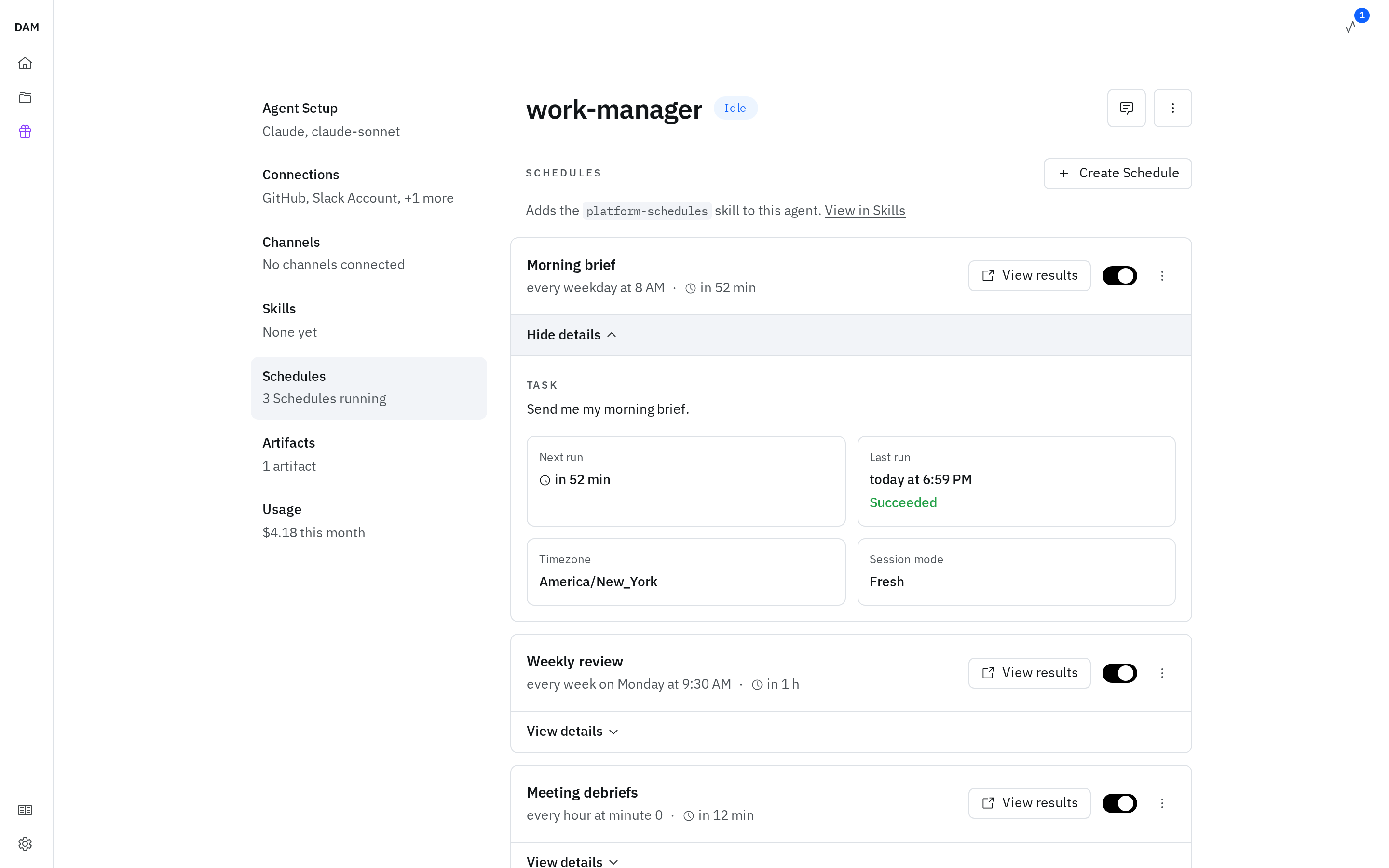
View results on a schedule lists the sessions it has produced — open one to see what happened on that run. A fresh schedule accumulates one session per run; a continuous schedule has a single session you can revisit. View details expands the schedule to show its next and last run, whether that last run succeeded, its timezone, its session mode, and its Precheck if it has one.
Past runs are recorded in the agent, so a stopped agent can't list them. Rather than looking broken, View results says so and offers Start agent right there; the last run and whether it succeeded are shown either way. On a running agent that can't be read, Try again retries, and a schedule that has never fired says No runs yet.
A session a schedule produced also carries how long the agent worked on it, on its row in the sessions list — a single run's time, a running total across a continuous schedule's fires, or that it's working right now. The reading counts the agent's own working time, so a reply you type into a scheduled session doesn't inflate it, and a run that crashed contributes nothing.