Agents
An agent is a running AI assistant with its own persistent workspace, credential access, and configuration. It's the core thing you create and work with on the platform, and it's isolated from every other agent — its own compute pod, workspace, and network boundary.
What You Get
When you create an agent, DAM provisions:
- An isolated sandbox — its own Linux environment running the AI harness
- A persistent workspace — a
~/workdirectory that survives restarts and hibernation - A credential gateway — a separate, hardened component that injects your tokens on the wire
- Network isolation — the agent can only reach services you explicitly allow
Each agent is independent. You can run several at once, each with a different harness and configuration.
Lifecycle
Starting → Running → Hibernating → Hibernated → Starting → ...
               │                                     ↑
    Pause ─────┤                                     │
    Stop ──────┴──────────────→ Stopped ─── Start ───┘
                                                     ↓
                                                   Error
| State | What's happening |
|---|---|
| Starting | The agent is starting up from hibernated, stopped, or newly created. |
| Preparing workspace | A one-time workspace setup step is still running. The agent is already up — it just isn't usable until that finishes. |
| Running | The agent is active, ready to chat. Reserves compute against your budget. In the agents list and on the agent's own page this splits into Working (a turn in flight) and Idle (up, with nothing running). |
| Hibernating | The agent is shutting down — the short window after you pause or stop it, before it reports down. |
| Hibernated | Shut down after being idle. Workspace and configuration preserved. No compute cost. Wakes automatically on next use. |
| Paused | You put it to sleep now instead of waiting for the idle timeout. Frees its budget immediately, and wakes automatically on next use — like an on-demand hibernate. |
| Stopped | A hard stop. Stays down and does not wake on its own — you must Start it (a scheduled run will also start it). Frees its budget. |
| Over budget | Can't start yet because your compute budget is full. It waits; a deliberate start — the Start button, opening the agent, or a schedule fire — retries the gate once other agents free up room. An Always on agent is the exception: it starts itself as soon as room frees. See Compute budget. |
| Error | The agent failed to start or encountered a fatal issue. |
The status pill collapses some of these
Hibernating, hibernated, paused, and stopped all show as Hibernating, and an agent waiting on budget shows as Over budget (with the CPU/memory figures in its tooltip). The states above are the underlying model, not nine distinct badges. Preparing workspace sits inside Running rather than before it, which is why it isn't a step in the diagram above. An Always on agent carries a grey Always on tag beside its status — in the agents list, on the agent's own page, and in the agent picker when you connect a channel. Hover it and it says the agent never hibernates on its own and keeps its compute reserved.
Pause vs. Stop vs. Hibernate. All three take an agent down and free its budget, but they differ in how it comes back: a hibernated or paused agent wakes automatically the next time you use it (hibernate happens on its own after the idle timeout; pause is you doing it now), while a stopped agent stays down until you explicitly start it or a schedule fires. One exception: an Always on agent can't be paused at all — Pause is offered but unavailable, since it would wake itself straight back up. Stop it instead.
Automatic Hibernation
Agents automatically hibernate after a period of inactivity (no active sessions, no pending triggers). When you open a chat or send a message from a connected channel, the agent wakes automatically.
An agent stays awake while it is busy — working a turn, with prompts queued, or waiting on an approval — and also while any chat, terminal, or SSH connection is simply open, even with nothing running. It only scales down once it's both idle and unconnected, so closing the tab, terminal, or editor is what lets it idle down.
Lifecycle is a choice between two cards, offered when you create an agent and editable afterwards under Agent Setup:
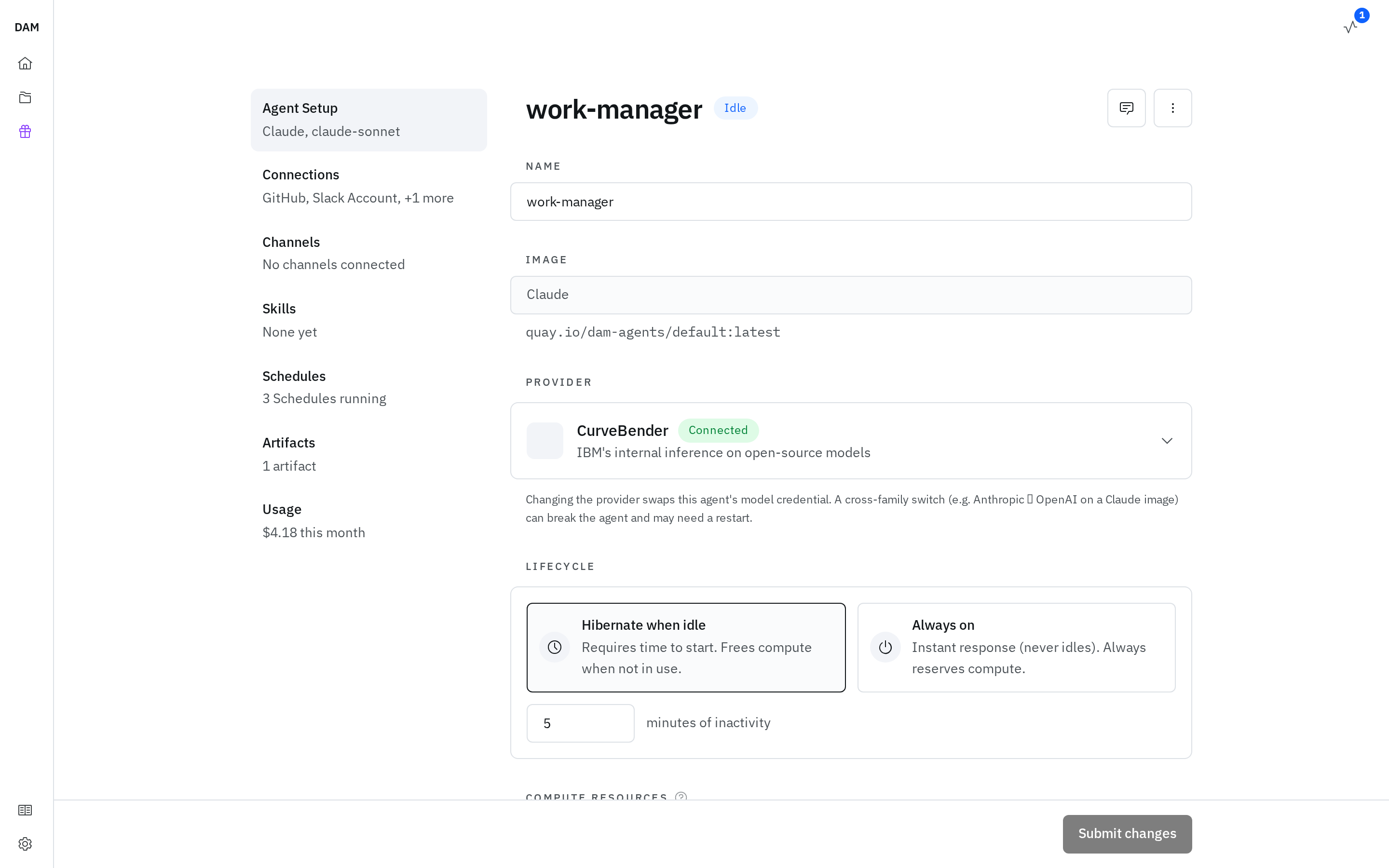
- Hibernate when idle — Requires time to start. Frees compute when not in use. Pick this and you also set the idle timeout in minutes; raise or lower it to fit how the agent is used. The field always shows the value in force, so an agent with no override displays the inherited default rather than a blank.
- Always on — Instant response (never idles). Always reserves compute. The agent stays up.
An Always on agent holds its reserved compute even while idle, keeping that room away from your other agents. The card says how much it reserves. Choose it only when you genuinely need one always on.
Background work and hibernation
Background work holds the agent awake by itself. When an agent starts a job in the background, it reports that work, and while anything is outstanding the agent won't hibernate underneath it — so closing the tab no longer kills what it left running. Nothing times that hold out: an agent with reported work stays up until the work ends. A Pause or Stop still takes it down regardless, so those remain the way to reclaim one deliberately.
That covers work the agent's harness supervises, which is the usual case. A job detached from the
harness (setsid, nohup) is invisible to it, so it isn't holding the agent awake — hibernation is
what will eventually end it. For those, either:
- Keep a terminal or SSH session open for the duration — an open connection pins the agent awake, and closing the tab or editor is what lets it idle down again.
- Raise the hibernation timeout, or switch the agent to Always on, before starting the job. Raising it only defers hibernation rather than preventing it.
Closing a chat tab doesn't stop a turn either — a running turn keeps the agent awake until it finishes.
Switching between Always on and Hibernate when idle asks you to confirm in both directions, since it's the difference between an always-on agent and one that may be interrupted.
What Survives Hibernation
| Persists | Lost |
|---|---|
Workspace files (~/work) |
Running processes |
Home directory ($HOME, except ~/.cache) |
In-memory state |
| Installed skills | Open terminal sessions |
| Session history | Files outside the persisted mounts (e.g. /tmp) |
| Connections and egress rules | Packages installed outside $HOME (apt, system-level) |
Bake long-term dependencies into an image
Anything your agent needs permanently — system packages, tools installed at runtime — should go into a custom image, or it will vanish on the next hibernation.
Compute budget and resources
Each agent gets a share of compute — CPU and memory it can use while it's running. Under Compute resources you pick from a short list of sizes rather than setting cores and gigabytes yourself; each option is a multiple of one slot, the standard share your operator's install is set up around, and each catalog image starts from a sensible default. An agent created before the list existed keeps whatever it was given and stays selectable as its own option, so nothing is forced to resize.
Those choices draw against a per-user compute budget — a ceiling on how many slots your agents can reserve at once. An agent reserves its share only while it's up — from the moment it starts, not once it's finished starting; pausing, stopping, or hibernating it frees that room immediately. Pick a size larger than the room currently free and you're told how many slots it needs against how many are free — the agent still saves, it just waits parked until room frees.
- If a new or resized agent would exceed your budget, it can't start and shows as Over budget — it waits until other agents free up room, and Start is its retry. When a start you asked for is parked this way, a dialog titled This agent could not start says why.
- To make room, pause or stop an agent you aren't using, then start the waiting one. DAM will also free room for you where it can: starting an agent that doesn't fit hibernates your own idle, unattended agents — longest-idle first, and only enough to fit — once they've been idle a few minutes, without waiting for their own timeout. Agents you have open, and any set to Always on, are never touched.
- Changing an agent's compute restarts it on save; if it's down, the new size applies the next time it starts. Growing a running agent past your budget is refused when you save — free room first.
Home shows where you stand, under Compute allocated — how many slots of your ceiling are taken, with each agent holding compute grouped as Working or Idle, and the rest free. It counts what every agent that's up reserves, not what it's actually consuming — one still starting included, an agent that's down or parked over budget not — so it drops when you stop or pause one rather than when an agent goes quiet. Request more beside it goes wherever your operator points it.
Available Harnesses
Each agent runs one harness — the AI software inside the agent:
| Harness | Best For |
|---|---|
| Claude | Claude Code — general-purpose coding, debugging, refactoring (Anthropic) |
| Codex | OpenAI Codex coding agent |
| Pi | Pi coding agent with multi-LLM support |
| Bob | Bob shell agent (Anthropic, Mistral, Granite) |
Knowledge bases and frameworks
A knowledge base isn't a separate kind of agent — it's an ordinary agent with a capability layered on. It's set up to build and maintain a body of knowledge you chat with: feed it sources and it answers with citations back to where the answer came from. You create one from a starter kit under Knowledge. See the Building knowledge bases guide.
Rather than write an optimization loop from scratch, you can run an established framework. Each is offered as a starter kit under Research, and each brings its own image — so you create an agent from the kit and give it your brief in its first message, rather than pairing it with an agent you already have. Point it at a target and a measurable objective — "evolve this function to run faster on this input set" — and it authors the run, drives the framework, and reports the winner.
- Nous Hypothesis-driven campaigns against a target system it clones, builds, patches and measures.
- OpenEvolve Evolutionary code optimization — evolves programs against a fitness function you define.
- ShinkaEvolve Sample-efficient evolutionary program optimization, for when each evaluation is costly.
- GEPA Reflective prompt and text optimization, rather than optimization of code itself.
- AdaEvolve Multi-island adaptive code and algorithm optimization, from the SkyDiscover project.
Which of these your install offers is up to your operator, so the Research shelf on Starter Kits is the list to trust — EvoX, a self-evolving optimizer from the same project as AdaEvolve, ships switched off, for instance, and so does K-Search, for GPU kernel optimization. Each kit's page links its own documentation, and Nous has a guide of its own: Run Nous campaigns.
Managing agents
Create
Every agent is created the same way, from Home. There are two routes in, and both land on one single page — Create an agent — filled top to bottom:
- Create agent — start from scratch and choose everything yourself.
- Browse starter kits — start from a starter kit, which pre-fills most of the page for you.
From scratch, the page asks for:
- Name — what you'll call it. It comes pre-filled, so you can accept it and move on.
- Image — the AI software inside the agent: Claude, Codex, Pi, or Bob.
- Provider — the model provider. Not connected yet? Connect it right here rather than in Settings.
- Connections — the credentials this agent may use, like GitHub for working against your repos.
- Lifecycle — Hibernate when idle or Always on, as described above.
- Knowledge bases — paste share links to give this agent read-only access to knowledge bases someone has published.
- Channels — connect it to Slack Channel or Telegram Chat as you create it, rather than afterwards. Each row explains the difference between the two: a channel means the agent answers as itself, where a Slack connection means it acts as you. The rows only appear for a messenger your operator has set up, and the agent starts in mentions-only mode either way.
Then click Create agent at the bottom of the page — the button that submits it, not Home's Create agent that brought you here. Network access isn't part of creation from scratch — a new agent starts on Trusted defaults — and neither is Compute resources; both are editable straight afterwards from the agent's page, see Configure.
Starter kits
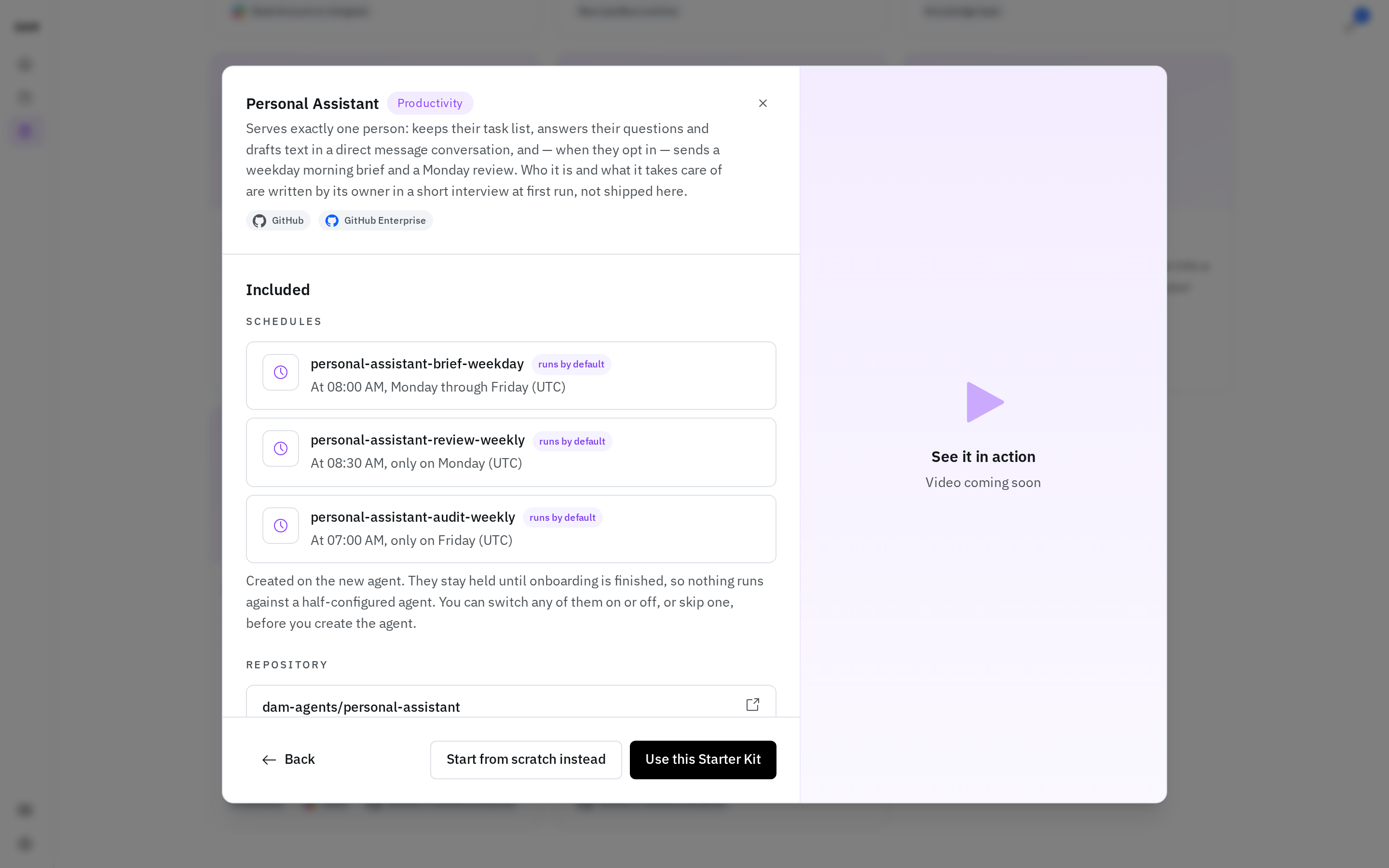
A starter kit is a ready-made agent configuration: a harness, skills, schedules, connections and channels bundled together, sometimes with a repository of its own. Starter Kits in the sidebar lists what your install offers, grouped as Software, Knowledge, Productivity and Research, and searchable. Each kit says who publishes it: By DAM with a check mark for the DAM team's kits, or By <name> for a kit a user contributed. To start with no kit, pick The Generalist, which needs no setup.
Open a kit to see exactly what it brings before you commit. Its window shows the harness and model it runs on, the Repository it seeds your workspace from, and its skills. You don't pick a provider: the platform uses one of yours that the kit can run on. Under You'll set up are the Connections it needs, with required ones called out so you know what it can't work without, the Schedules it registers — adjust or skip any of them — and the channels you can talk to it in. You can rename the agent and change its avatar there too. Then click Use this starter kit.
Network access is shown too, read-only: the preset the agent starts on — the trusted defaults unless the kit sets its own — and any rules the kit adds on top. A kit can ask for more than the defaults, up to Full web access, so this is where you see that before you create. It's a starting point, not a lock: you change it in the agent's Network access settings afterwards, where the kit's rules are marked from the starter kit.
A kit usually opens a first session as soon as the agent exists, where the agent asks you for the handful of things only you can supply and does the rest itself. While that's unfinished the agent carries an Onboarding badge — Onboarding 2/5 once it knows how many steps there are — and a bar above the message box tracks the same list. Any schedules the kit registered are held until the agent marks onboarding complete, so nothing fires against a half-configured agent.
Afterwards it's an ordinary agent, listed on Home with the rest, carrying a badge naming the kit it came from.
When the kit moves on. A kit that seeds a repository can improve after you've created from it. When it has, the agent carries a Kit update tag in the agents list, and its chat shows a bar above the message box saying the kit has a newer version. Hover Update to see what changed, or click it to open a session where the agent walks you through the changes and asks which to take — including where the update touches a file you've edited. Your own edits stay as local changes: the agent is told never to commit or push them. Skip this version hides the offer until the kit moves again, and an update you've started but not finished offers Continue update or Start again. Nothing is offered while the agent is still onboarding.
Which kits you see is up to your operator
The catalogue is configured per install and can move without a platform release, so treat the list on your own Starter Kits page as the authority. The Generalist is always there, even when an install lists no other kits.
To import a kit for yourself from its link, or to contribute a kit to Starter Kits for everyone, see Create your own starter kit.
Configure
From the agent's page, the left nav has these sections:
- Agent Setup — name, provider, Model settings (see Sessions), Network access (which external services it may reach), Lifecycle (Hibernate when idle, with the timeout in minutes, or Always on), Knowledge (share links to other knowledge bases), Environment variables, and Compute resources (its share while running, within your compute budget; changing it restarts a running agent on save). The image is fixed at creation — the only change to it is the update below.
- Connections — link GitHub, API keys, and other credentials
- Channels — connect the agent to Slack channels or Telegram chats (see Slack and Telegram)
- Skills — install or remove capabilities
- Schedules — run recurring tasks
- Artifacts — files the agent has published
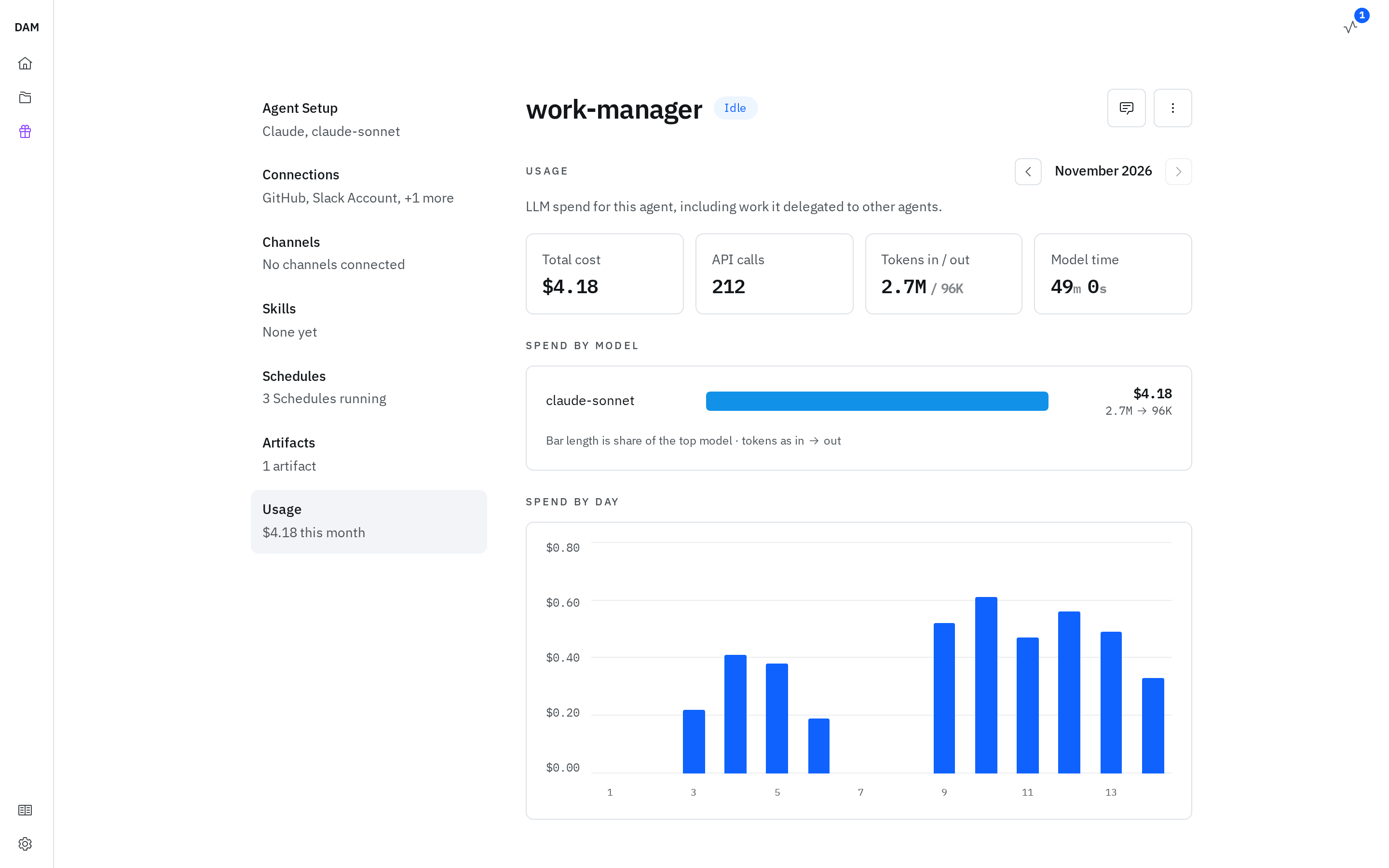
- Usage — this agent's model spend for a calendar month, broken down by model and by day. It includes work the agent delegated to other agents.
Ways in
Chat is the default way in, and it's one click. Clicking an agent in the list opens its chat — and starts it first if it's asleep, so there's no config page to pass through on the way. From chat, the ⋮ menu carries Configure agent to reach the page described above; the agents list has the same item in each row's ⋯ menu, and the agent's page has an Open chat button back the other way.
The other ways in sit beside the message box on a new session — where a session has no messages yet, under Start a new session:
| Option | What it does |
|---|---|
| Terminal (browser) | Opens the harness terminal (PTY) in the browser |
| Terminal (local) | Shows a copyable dam chat command to attach from your own terminal |
| VS Code / Zed (local) | Shows copyable dam ssh connect commands for either editor — see the VS Code/Zed (SSH) guide |
Both dialogs link the CLI quickstart, so a first-time setup is one hop away. New in the sessions sidebar opens a chat session directly rather than asking which kind you want — start a terminal from the launch options above instead.
Pause, Stop & Start
From the agent's actions menu — on its own page and on its row in the list — you can take it down without deleting it. The two that free compute sit together under Free up compute, each naming what brings the agent back:
- Stop — a hard stop. It frees the agent's budget and wakes only when a schedule fires or you start it. Reach for this when you want the room to stay free.
- Pause — puts it to sleep now and frees its budget too, but wakes on any action — a schedule firing, a message arriving, or you opening a chat.
- Wake / Start — brings an agent back up; the label depends on where you are. Opening an agent that's down offers Start agent. In the agents list a parked agent offers Start (which retries the budget gate) and any other agent that's down offers Wake; on the agent's own actions menu an agent that's down reads Wake whatever the reason it went down.
- Restart — offered for a running or errored agent, and the only power action for those states. It's also offered for an agent stuck starting — on its row, its page and its start screen, which then says starting is taking longer than usual, or why the start failed. It recreates the agent on its current settings; the workspace survives. Reach for it when one is wedged.
All of these preserve the workspace and configuration exactly like hibernation — see What Survives Hibernation.
If an agent restarts on its own while you have DAM open, a notice says so, naming the cause where it's known: one that ran out of memory says so and suggests a larger size under Compute resources; one that ran out of storage says so and suggests deleting files it no longer needs or requesting more; otherwise it says the agent crashed and restarted. You're told once per restart, and not afterwards about a restart that happened while you were away.
Pause is unavailable on an Always on agent
An Always on agent shows Pause marked Unavailable, because pausing it would only wake it straight back up. Stop it instead, or switch it to Hibernate when idle under Agent Setup → Lifecycle.
Updating the image
When the template an agent was created from moves on, an Update button appears — in the agent's page header, and on its row in the agents list. Hover it to see which image version the template now ships, and a See what changed link where the harness publishes release notes; click it to confirm and apply.
Applying changes only the image. An agent that's hibernating, or parked over budget, applies it the next time it starts; anything else restarts to apply it, so in-flight work is interrupted. The confirmation tells you which case you're in.
If you don't apply it, DAM moves an agent made from a template onto the template's current image by itself, without interrupting it: a hibernated or parked agent at once, a running one once it next hibernates, and an Always on one once it's been quiet for a while with nothing connected. If the agent won't start on the new image, DAM moves it back and doesn't try that image again. An agent made from a custom image or a starter kit is never moved.
Where more than one agent is behind, the list carries a banner counting them, with Update all to catch up in one action rather than a visit per agent.
An agent can also be behind in a way that costs it something silently. Where its runtime is too old to accept configuration you granted it — network access, credentials, files, MCP servers, skills — it carries a Missing config warning badge on its row and in its chat header, and a notice at the top of the chat page's sidebar, above the session list, says which kinds it's running without. Where an image update exists, Update is offered right there; where none is yet, it tells you that instead, so the warning is never something you can act on and fail.
Delete
Deleting an agent permanently removes its workspace, sessions, and configuration. This cannot be undone.
Deleting an agent destroys all workspace files. If you have important work, download it or push it to a remote repository first.